Client can't attach document

Blues

Well-Known Member
Reaction score
581
Location
Tennessee, US
Have a client recently got a new computer and helped get it setup and ensure old device data was backed up and/or migrated to the new computer. This was all done a month or 2 ago no issues until today, or reported today, and one I haven't come across or seen.

Client is trying to attach a word document to an email however it is saying the document is in the cloud and client states that save it locally to the machine. The error that occurs is when attempting to attach the document it gives an error that the document couldn't be downloaded. I have not been on site yet only been sent messages and screen shots via text messaging for now.

For now any thoughts and input are welcome I am not sure when I can do an onsite visit for this client just yet.
 
Have a client recently got a new computer and helped get it setup and ensure old device data was backed up and/or migrated to the new computer. This was all done a month or 2 ago no issues until today, or reported today, and one I haven't come across or seen.

Client is trying to attach a word document to an email however it is saying the document is in the cloud and client states that save it locally to the machine. The error that occurs is when attempting to attach the document it gives an error that the document couldn't be downloaded. I have not been on site yet only been sent messages and screen shots via text messaging for now.

For now any thoughts and input are welcome I am not sure when I can do an onsite visit for this client just yet.

Why onsite? do you not have a remote support tool?

QuickSupport?
 
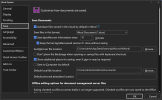
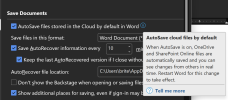
Word/Excel save directly to the OneDrive by default, even if the OneDrive app is not syncing files. That's if the user doesn't change the save location each time, or if they don't turn on the option to save to computer by default.
1776987170555.png
 
Why onsite? do you not have a remote support tool?

I've been using Microsoft's Quick Assist lately now that I don't maintain a remote server. Doesn't have all the bells and whistles of other options but everyone has it and not hard for a user to bring up.
 
I understand the remarks about not saving locally but my greater concern is that it is blocking the client from attaching the file to email. The fact the file is in the cloud shouldn't be preventing attaching to an email and giving a "download failed" error.
 
I understand the remarks about not saving locally but my greater concern is that it is blocking the client from attaching the file to email. The fact the file is in the cloud shouldn't be preventing attaching to an email and giving a "download failed" error.

I would think an important aspect of the problem is the exact email client being used. Is this Outlook (New), Outlook (Classic), Thunderbird, Proton?

Which then naturally leads to the question whether the client can use a webmail interface and experience the same symptom?

Finally, is the client having a problem with just a single file? Or a single file type? Or all files? A single file could simply be corrupt with no EOF marker which could confuse the attach code.
 
It is Outlook though I am not certain if it is New or Classic

I haven't had them try a web client though I am not sure how easily I could walk them through that

So far it is one file that I know and client has indicated it is a continuous problem but not clear if it is all word files or a mix of different types.
 
Well, it would also help to know what the file type *and* size are. There are some who still try attaching things (rather than using file sharing services) that far exceed what any email service permits and most email clients try to follow in terms of size checking.
 
I've been using Microsoft's Quick Assist lately now that I don't maintain a remote server. Doesn't have all the bells and whistles of other options but everyone has it and not hard for a user to bring up.
Good though can get tedious with UAC Prompts,
"Please press Yes..please press Yes..SIGH..Please press Yes."
 
Good though can get tedious with UAC Prompts,

I guess. And for something like this situation, where just getting "the lay of the land" is in order, there probably won't be any.

I always tell my clients that if we get any UAC prompts they will need to respond to them. If I honestly thought there were going to be a stream of these, the first thing I'd do is turn off (or have the client turn off) UAC at the start of the session and reverse that at the end.
 
Good though can get tedious with UAC Prompts,

Yes, and not being able to transfer files is a serious handicap, IMO. I have used quick assist to then make my own connection with our main tool, though - haha. I have to bite my tongue to NOT say "See this button RIGHT HERE that you couldn't find? That's the one you needed to press!"
 
Yes, and not being able to transfer files is a serious handicap, IMO. I have used quick assist to then make my own connection with our main tool, though - haha. I have to bite my tongue to NOT say "See this button RIGHT HERE that you couldn't find? That's the one you needed to press!"

I usually remote in with QA, then setup Splashtop on the users system. Just for those that have difficulty with the process.
 
I understand the remarks about not saving locally but my greater concern is that it is blocking the client from attaching the file to email. The fact the file is in the cloud shouldn't be preventing attaching to an email and giving a "download failed" error.
As I said above, Word/Excel saves directly to the cloud even if the OneDrive app isn't syncing or even running. The relevance to your issue is whether or not Outlook Classic or New can directly access files in the cloud without the help of the OneDrive app.
 
As I said above, Word/Excel saves directly to the cloud even if the OneDrive app isn't syncing or even running.

Please explain in further detail. I have not seen this happen, and I have M365 and OneDrive. Now, mind you, files saved to a OneDrive synced folder, and where the file has not been accessed and has returned to "cloud only" status, is inaccessible unless OneDrive is active to sync it down on demand. But neither Word nor Excel handle the cloud storage part of the process, that's entirely handled by OneDrive, in my observation and direct experience.
 
Hey sorry for the delays I did put eye on it and the issue had stopped by the time I did but from reviewing more details from the error it seems the computer was defaulting to trying to pull down the cloud version to attach and some type of error was preventing sync and/or access to the cloud. Unfortunately the error could not be replicated while I had eyes on it so I can't determine to much precisely for it. The use requested Auto Save be turned off while I working with them so we did that which may help with the issue potentially returning.

For some details that were not in prior post
Email Application: Outlook Classic
Files: standard word documents aka .docx

It was only showing cloud files when the issue was happening however when I had eyes on it there would regularly be 2 versions showing a cloud and local copy. The user was using the recent documents list that Outlook provides when you click the attachment icon instead of navigating to the files local storage location.
 
Please explain in further detail. I have not seen this happen
It's unusual, because most people with Word/Excel have a Microsoft account added to OneDrive, usually automatically. However if someone opens the OneDrive app and signs out from the account (or prevents the app from starting) then Word/Excel can still save directly to OneDrive (which is the default). I've seen this, where the user can reopen the doc in Word but it doesn't appear in File Explorer anywhere. Office apps use the Microsoft account on the left hand side of the app's File > Account screen. Incidentally this can be a different account from the one on the right hand side which is the subscription account. Note this has nothing to do with AutoSave. In my first post on this (above) I was referring to the "Save to computer by default" option which is turned off by default, meaning it will save to cloud by default when the user saves a new document.

This situation may not have caused the issue in this thread, I was just bringing it up as an idea.
 
Back
Top