

thecomputerguy
Well-Known Member
- Reaction score
- 1,488
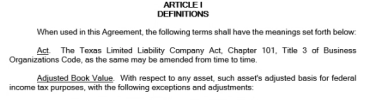
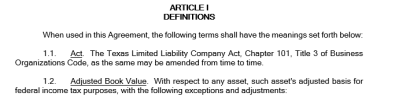
Client informed me that section numbers were missing from multiple Word Docs. I grabbed the file and the section numbers showed up properly on my own computer. Per the images below image 1 shows no section numbers on the clients computer. Image 2 shows section numbers on my computer.
- When printing, the section numbers do not show.
- He can reproduce the issue on other computers at the office.
- I cannot reproduce the issue as the exact same file shows section numbers on my own computer (DOUBLE CONFIRMED)
- He had his client re-send the file again and the same file re-saved showed section numbers (intermittency)
It seems like a viewing error in Word but I'm not sure where to look or how to search for it.
I have tried:
Quick Repair
Online Repair
Uninstall/Reinstall
Re saved file to new location
Copy/Paste content (No Result)
- When printing, the section numbers do not show.
- He can reproduce the issue on other computers at the office.
- I cannot reproduce the issue as the exact same file shows section numbers on my own computer (DOUBLE CONFIRMED)
- He had his client re-send the file again and the same file re-saved showed section numbers (intermittency)
It seems like a viewing error in Word but I'm not sure where to look or how to search for it.
I have tried:
Quick Repair
Online Repair
Uninstall/Reinstall
Re saved file to new location
Copy/Paste content (No Result)


