Anyone know of a tool to fix the name of 1000 folders named by date incorrectly?

thecomputerguy

Well-Known Member
Reaction score
1,453
I have a client who went from Mac to PC and I had to export all of his photos from the photos app so I could transfer it to a PC. The total folder count was about 1000. When exporting through the photos app files are named like this.
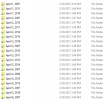
1617205978459.png

The problem is you can't sort them by date because the modified date is the date of export, Yesterday. If you sort it by name you get the folders alphabetically so all of the years of April are together, then all of the years of August, and so on and so forth.

Is there a tool that can analyze this folder and correctly sort this by date like it should be?
 
Yes. Have a look at MS PowerToys, specifically the Bulk File Renamer, which has regex capability which is just what you need here to covert things like April 1, 2007 into 2007-04-01 or 2007-Apr-01 or similar, depending on how much manipulation you want to do.

 
If the original photos themselves have the "modified date" still intact, do a search for the photo extension, "*.jpg" and copy them into one big folder. Regardless of even that, any photo app will likely check the exim data listed in the properties of the photo and do its own sorting.

What are they using on PC to organize? I've heard lots using Picasa, but Google unfortunately discontinued support/updates for it.
 
I've heard lots using Picasa, but Google unfortunately discontinued support/updates for it.

But it still works just fine and dandy as a local manager. It's just the cloud components that no longer connect or function, which makes it an even better option, as far as I'm concerned.

I archived the installer for the last version on my Google Drive, and posted the link to same very recently, and will again here: Google Picasa v3.9 (exe)

It still wouldn't be my first approach. I'd want the folders correctly named and organized as it makes later "human location" of images you know you took "on that vacation in the summer of 2009" much easier.
 
But if I'm understanding the original intent correctly, there is neither need nor desire to change any of the individual photo file names. It appears that the issue lies solely in that the export format for folder names makes it such that an alphabetical sort mixes many different years together and, because they were exported on the same date, date information about folder creation cannot be used to rectify the issue.

This seems to me to be a case where a YYYY-MM-DD folder name format is wanted to replace the current Monthname, day of month, YYYY format.

If this client is like me, there may be a huge number of individual picture files that were very specifically renamed that I'd never want renamed based upon their metadata.
 
Correct ... we don't want to dump everything into a single folder, that would be a mess. Just want to simply rename the file format so they fall into correct spots.
 
EXIF Sorter can copy/move the files to new folders, whose names are based on EXIF data of the files, but I don't see how this can be done without changing the names of the files based on their EXIF data. There may be a way but it wasn't obvious when I played around with it. Perhaps an e-mail to their support will suggest a solution.

Do the folders you've listed contain sub-folders (with meaningful names)? Do the files within the folders have meaningful names? Screenshot of the file directory from the Mac photos app?
 
Not to put too fine a point on it, but if the goal is to do what has been stated as desired, why not use the PowerToy that I mentioned?

If you use this regex for Jan or January, then again for Feb or February (replacing the month as needed) for the "find" part:

(Jan)\s(\d+),\s(\d+)

and replace with \3-01-\2 (where that 01 would become 02, 03, etc., as you work through the 12 months, you'll be done renaming however many folders you have in the 12 steps it takes to cover the 12 months. What goes in the initial parentheses enclosed capture group should be the month as it's shown in your folder list. I don't know whether all are written out in full, some abbreviated, etc., from the sample.

I don't want to get into conditional regex here, as it's way more inconvenient to write one that covers all 12 months in a way that's compact and comprehensible.

If you must have the leading zero on the day at the end a bit more trickery is required, and I can produce it if needed.
 
One small update, it would be far easier to do two passes per month.

Pass One would use the regex: Jan\s+(\d),\s+(\d{4}) with the rename replacement $2-01-0$1

Pass two would use the regex: Jan\s+(\d{2}),\s+(\d{4}) with the rename replacement $2-01-$1

Then use Feb/02, Mar/03, April/04, etc. (Use whatever is used in the actual folder name for the month name in the match regex.)

I only noticed on reviewing last night that PowerRename uses a regex engine that requires the use of dollar sign match group naming in the substitution string. You also really don't need to capture the month name for use in the substitution because you'll use the month number anyway.

If you have thousands of folders that use the naming convention shown, then all will be corrected to YYYY-MM-DD naming after 24 passes of PowerRename, two for each month of the year that cover dates the first through ninth then the second for the tenth through end of month.
 
I have too much time on my hands today and this seemed like a fun project for testing my PowerShell. If the naming scheme is strictly as in your screenshot this PowerShell would work.

Regex would be more reliable I was just lazy.


Code:
$FolderPath = "C:\Path\To\Your\Folders"

# Gets a list of all directories in the path
$Folders = Get-ChildItem -Path $FolderPath -Directory

# loop through each folder one at a time
foreach ($folder in $Folders) {

    # Split the name on ,
    # First part is MonthDay (eg. January 03)
    # Second part is the year (eg. 2021)
    $MonthDay = $folder.name.split(",")[0]
    $Year = $folder.name.split(",")[1]

    # Remove an extra space at the start of Year
    $Year = $Year -replace '[ ]',''

    # Split MonthDay on space to get Month & Day as seperate objects
    $Month = $MonthDay.split(" ")[0]
    $Day = $MonthDay.split(" ")[1]

    # Determine numeric value for Month
    switch ($Month) {
     "January" {$MonthNumeric = "01"}
     "February" {$MonthNumeric = "02"}
     "March" {$MonthNumeric = "03"}
     "April" {$MonthNumeric = "04"}
     "May" {$MonthNumeric = "05"}
     "June" {$MonthNumeric = "06"}
     "July" {$MonthNumeric = "07"}
     "August" {$MonthNumeric = "08"}
     "September" {$MonthNumeric = "09"}
     "October" {$MonthNumeric = "10"}
     "November" {$MonthNumeric = "11"}
     "December" {$MonthNumeric = "12"}
    }

    # Build a new folder name
    $NewFolderName = $Year + "-" + $MonthNumeric + "-" + $Day

    # Rename the folder
    Rename-Item $folder.FullName $NewFolderName
}
 
I have too much time on my hands today and this seemed like a fun project for testing my PowerShell. If the naming scheme is strictly as in your screenshot this PowerShell would work.

Regex would be more reliable I was just lazy.


Code:
$FolderPath = "C:\Path\To\Your\Folders"

# Gets a list of all directories in the path
$Folders = Get-ChildItem -Path $FolderPath -Directory

# loop through each folder one at a time
foreach ($folder in $Folders) {

    # Split the name on ,
    # First part is MonthDay (eg. January 03)
    # Second part is the year (eg. 2021)
    $MonthDay = $folder.name.split(",")[0]
    $Year = $folder.name.split(",")[1]

    # Remove an extra space at the start of Year
    $Year = $Year -replace '[ ]',''

    # Split MonthDay on space to get Month & Day as seperate objects
    $Month = $MonthDay.split(" ")[0]
    $Day = $MonthDay.split(" ")[1]

    # Determine numeric value for Month
    switch ($Month) {
     "January" {$MonthNumeric = "01"}
     "February" {$MonthNumeric = "02"}
     "March" {$MonthNumeric = "03"}
     "April" {$MonthNumeric = "04"}
     "May" {$MonthNumeric = "05"}
     "June" {$MonthNumeric = "06"}
     "July" {$MonthNumeric = "07"}
     "August" {$MonthNumeric = "08"}
     "September" {$MonthNumeric = "09"}
     "October" {$MonthNumeric = "10"}
     "November" {$MonthNumeric = "11"}
     "December" {$MonthNumeric = "12"}
    }

    # Build a new folder name
    $NewFolderName = $Year + "-" + $MonthNumeric + "-" + $Day

    # Rename the folder
    Rename-Item $folder.FullName $NewFolderName
}
I think you're probably reinventing the wheel here. I suspect those strings can be converted to a DateTime object as-is, and then the format can just be specified when converting back to a string.
 
I think you're probably reinventing the wheel here. I suspect those strings can be converted to a DateTime object as-is, and then the format can just be specified when converting back to a string.

You are correct! Never thought that format would match a datetime but it absolutely does. This is why I undertake random projects in PowerShell now and then. Always learn something new.

New and much improved v2. Now I'm wondering if I can get this down to a one-liner

Code:
$FolderPath = 'C:\Path\To\Your\Folders'

# loop through each directory one at a time
foreach ($folder in Get-ChildItem -Path $FolderPath -Directory) {

    # Convert string to dattime then output back to string again in preferred format
    $NewFolderName = [datetime]::parseexact($folder.name, 'MMMM d, yyyy', $null).ToString('yyyy-MM-dd')

    # Rename the folder
    Rename-Item $folder.FullName $NewFolderName
}
 
Last edited:
You are correct! Never thought that format would match a datetime but it absolutely does. This is why I undertake random projects in PowerShell now and then. Always learn something new.

New and much improved v2. Now I'm wondering if I can get this down to a one-liner

Code:
$FolderPath = 'C:\Path\To\Your\Folders'

# loop through each directory one at a time
foreach ($folder in Get-ChildItem -Path $FolderPath -Directory) {

    # Convert string to dattime then output back to string again in preferred format
    $NewFolderName = [datetime]::parseexact($folder.name, 'MMMM d, yyyy', $null).ToString('yyyy-MM-dd')

    # Rename the folder
    Rename-Item $folder.FullName $NewFolderName
}

Will that single "d," in the middle of 'MMMM d, yyyy' work for 2 digit days? I'm still working on learning PowerShell.

Also can you explain, or point me to the reference for, the syntax used in that whole line? I get that "[datetime]" is a cast to that type, but that double colon and the reason for casting in the first place confuses me.

Of course, I'll admit that quite a bit of PowerShell syntax continues to elude me. It's worse, by far, than most regular expressions for my brain to parse.
 
@SAFCasper I mean, technically you could have a lot of powershell fit into one line, but readability is more desirable.

@britechguy It's not a cast, it's just Powershell syntax for directly using .Net stuff. Yes, the syntax is hard to read. That's why if you were doing a lot of stuff like that you would just use C# within the Powershell script. It's the equivalent of DateTime.ParseExact()
 
you could have a lot of powershell fit into one line, but readability is more desirable.

Same applies to regexes, too, and would that all the programming world adopted the idea that readability is way more desirable.

The person that writes the beautifully compact, but virtually inscrutable, code is not likely to be the one maintaining it. I learned that while brevity and compactness are good things, they can be taken way, way too far. That lesson was driven home after I had to deconstruct one of my "way too clever" creations several years later and it probably took me longer than it did to write it originally. Stuff fades when you're not using it constantly, so make sure anyone who has to touch it later can figure it out without herculean effort.
 
Back
Top