Drive mapping issues Windows 10

BO Terry

Active Member
Reaction score
112
Location
NC
Hi,

I have a new client running a peer to peer network. I installed a new Win 10 computer which will host their QuickBooks data and be shared to 3 onsite users. The Windows 10 computer has each of the 3 users added as local admin's.

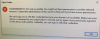
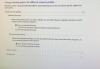
From the user computers, I can ping the QB computer by computer name as well as by IP without any issue. When I try browsing or mapping a drive from a workstation to the QB computer, I am unable to access it. Here are 3 screenshots showing settings and error. Each of the users has their own login to the QB computer.

Once I have this resolved, I also want to be sure the other computers in the office can not gain access.
 

Attachments

  • Map error.PNG
    Map error.PNG
    972.1 KB · Views: 23
  • network settings workstation.PNG
    network settings workstation.PNG
    667 KB · Views: 22
  • network settings qb computer.PNG
    network settings qb computer.PNG
    186.1 KB · Views: 22
I setup "workgroups" the old fashioned way...add usernames and passwords to the "host (server)" which match the credentials used on other workstations.
Example..on the "host"...Maryann logs in as Maryann with a password of Slowbooks. On second computer, John logs in as John with a password of "DrinksROnMe". And on a third computer, Kim logs in with a password of "Yay1tsFrid@y"
On the "host" computer I'd also create local users of John and Kim with those same passwords.

Now on the Quickbooks share...skip the Win10 share setup and do the Advanced share ...set the primary Share permissions to "Everyone"...but on the NTFS...add those 3x users...plus admin account and system and the qbooks service account that was added.
 
Hi,

I have a new client running a peer to peer network. I installed a new Win 10 computer which will host their QuickBooks data and be shared to 3 onsite users. The Windows 10 computer has each of the 3 users added as local admin's.

From the user computers, I can ping the QB computer by computer name as well as by IP without any issue. When I try browsing or mapping a drive from a workstation to the QB computer, I am unable to access it. Here are 3 screenshots showing settings and error. Each of the users has their own login to the QB computer.

Once I have this resolved, I also want to be sure the other computers in the office can not gain access.

Can you access the shares by using the host computers IP instead of the computer name?

i.e. instead of \\QUICKBOOKS12-18 use \\192.168.0.105

If you can you could just hard code the IP into the host computer so that it doesn't change or reserve it in your DHCP server and then modify the hosts file on the client computers to force 192.168.0.105 to connect to QUICKBOOKS12-18

It's not really a fix but its a quick workaround that should last.

The only reason I can think of this happening is if something is up with the local DNS/DHCP and its not using computers names correctly or you are using the same logon name i.e. Owner but the passwords are not the same, however I think if it was a credential issue you would get a credential popup so I could be wrong.

I've done the IP to computer name mapping in the hosts file before as a quick fix and never really had an issue.

Also maybe try a ipconfig /flushdns and a reboot, and possibly reboot whatever device is handling your DNS/DHCP.

But @YeOldeStonecat is a lot smarter than I am so he might be on a better path :)
 
Last edited:
I setup "workgroups" the old fashioned way...add usernames and passwords to the "host (server)" which match the credentials used on other workstations.
Example..on the "host"...Maryann logs in as Maryann with a password of Slowbooks. On second computer, John logs in as John with a password of "DrinksROnMe". And on a third computer, Kim logs in with a password of "Yay1tsFrid@y"
On the "host" computer I'd also create local users of John and Kim with those same passwords.

**Hmmm. These steps are already completed but I still can not navigate in any way to the "host" computer. Either from mapping a drive or just navigating through from start.

QuickBooks has not been installed yet so I will have to do that part after the QB guy does his part. Thanks for the info.
 
Can you access the shares by using the host computers IP instead of the computer name?

i.e. instead of \\QUICKBOOKS12-18 use \\192.168.0.105

If you can you could just hard code the IP into the host computer so that it doesn't change or reserve it in your DHCP server and then modify the hosts file on the client computers to force 192.168.0.105 to connect to QUICKBOOKS12-18

It's not really a fix but its a quick workaround that should last.

The only reason I can think of this happening is if something is up with the local DNS/DHCP and its not using computers names correctly or you are using the same logon name i.e. Owner but the passwords are not the same, however I think if it was a credential issue you would get a credential popup so I could be wrong.

I've done the IP to computer name mapping in the hosts file before as a quick fix and never really had an issue.

Also maybe try a ipconfig /flushdns and a reboot, and possibly reboot whatever device is handling your DNS/DHCP.

But @YeOldeStonecat is a lot smarter than I am so he might be on a better path :)
I setup "workgroups" the old fashioned way...add usernames and passwords to the "host (server)" which match the credentials used on other workstations.
Example..on the "host"...Maryann logs in as Maryann with a password of Slowbooks. On second computer, John logs in as John with a password of "DrinksROnMe". And on a third computer, Kim logs in with a password of "Yay1tsFrid@y"
On the "host" computer I'd also create local users of John and Kim with those same passwords.

Now on the Quickbooks share...skip the Win10 share setup and do the Advanced share ...set the primary Share permissions to "Everyone"...but on the NTFS...add those 3x users...plus admin account and system and the qbooks service account that was added.
I setup "workgroups" the old fashioned way...add usernames and passwords to the "host (server)" which match the credentials used on other workstations.
Example..on the "host"...Maryann logs in as Maryann with a password of Slowbooks. On second computer, John logs in as John with a password of "DrinksROnMe". And on a third computer, Kim logs in with a password of "Yay1tsFrid@y"
On the "host" computer I'd also create local users of John and Kim with those same passwords.

Now on the Quickbooks share...skip the Win10 share setup and do the Advanced share ...set the primary Share permissions to "Everyone"...but on the NTFS...add those 3x users...plus admin account and system and the qbooks service account that was added.
Can you access the shares by using the host computers IP instead of the computer name?

i.e. instead of \\QUICKBOOKS12-18 use \\192.168.0.105

If you can you could just hard code the IP into the host computer so that it doesn't change or reserve it in your DHCP server and then modify the hosts file on the client computers to force 192.168.0.105 to connect to QUICKBOOKS12-18

It's not really a fix but its a quick workaround that should last.

The only reason I can think of this happening is if something is up with the local DNS/DHCP and its not using computers names correctly or you are using the same logon name i.e. Owner but the passwords are not the same, however I think if it was a credential issue you would get a credential popup so I could be wrong.

I've done the IP to computer name mapping in the hosts file before as a quick fix and never really had an issue.

Also maybe try a ipconfig /flushdns and a reboot, and possibly reboot whatever device is handling your DNS/DHCP.

But @YeOldeStonecat is a lot smarter than I am so he might be on a better path :)

I tried mapping to/connecting to both the computer name and IP with the same result. I can try setting the computer to static vs DHCP when I have access again. I am pretty certain the user/password on the workstation matches what I added for each user on the host do match.

I have not done a flush but will do so to see if it helps. I did reboot both the host and the first workstation. I have not rebooted the second workstation I attempted to access the host from.
 
I may have identified part of the issue. The computer shows "Workgroup" but when I look at the user account on the workstation, it shows AzureAD\UserName under their account name. I have worked on domains as well as workgroups. Is this some sort of hybrid?
 
Ahh...bingo, so it's not a workgroup. It's a couple of domain joined computers mixed in with a workgroup mode computer.
I haven't tried mixing these.
Suppose I'd try ...on the Security tab of the file share permissions (this is where NTFS granular permissions are set)..ensure that's set to EVERYONE group too. So on the share level..and the NTFS level..both are everyone. Of course..this is not a good long term option for accounting software or any sensitive data. But it gets you started. Wonder if this rig can be joined to Azure by a user account...so you can set the share to domain users.
 
Oh, fun! When I asked them about it just now, they had no idea what I was talking about. And I have never worked with Azure. Does Azure come with a certain number of seats? And/or is it somehow tied to their O365 account? They have a total of 13 computers, including the new one I just set up.

Assuming the Azure AD is not from the old company they are splitting from, would the best bet be to add the new computer to the Azure AD and then reattempt the mapping after that? If so, it straightforward just like on a typical domain? With the path and the login credentials, you are good to go?
 
Did you also do the following to the NEW Windos10 computer/"server" ?2. Make sure Use Sharing Wizard is checked in Folder Options > View tab. (see screenshot below)
194194d1530455969-share-files-folders-over-network-windows-10-a-use_sharing_wizard.png


3. Make sure the Function Discovery Resource Publication and Function Discovery Provider Host services are started (running) and their startup type is set to automatic. (see screenshots below)

191500d1528411244-share-files-folders-over-network-windows-10-a-function_discovery_resource_publication.png
191592d1528478248-share-files-folders-over-network-windows-10-a-function_discovery_provider_host.png
 
I did not know about this, thanks for the step by step. Will this bypass the need to join the new machine to Azure AD?
 
All I know is it will let you at least share folders and files from that new win 10 pc.
I have a new client running a peer to peer network. I installed a new Win 10 computer which will host their QuickBooks data and be shared to 3 onsite users. The Windows 10 computer has each of the 3 users added as local admin's.
That Win 10 computer should be able to just share the QB database. Were you planning to use it for something else?
 
From what I've seen, linking my computer to my Office 365 account does not in fact make my computer join a domain. I'm still on WORKGROUP, but my user is prefixed with AzureAD.

So for all intents and purposes you are still in WORKGROUP. Unless you've invested in the actual Azure AD service which is not on by default.
 
Ahh...bingo, so it's not a workgroup. It's a couple of domain joined computers mixed in with a workgroup mode computer.
I haven't tried mixing these.
Suppose I'd try ...on the Security tab of the file share permissions (this is where NTFS granular permissions are set)..ensure that's set to EVERYONE group too. So on the share level..and the NTFS level..both are everyone. Of course..this is not a good long term option for accounting software or any sensitive data. But it gets you started. Wonder if this rig can be joined to Azure by a user account...so you can set the share to domain users.

ah, fun! I called them just now to ask about Azure and they had no idea what I was talking about. Thanks for the suggestion above on the security tab.
Any suggestions on where to start getting a handle on Workgroup vs Azure?
 
From what I've seen, linking my computer to my Office 365 account does not in fact make my computer join a domain. I'm still on WORKGROUP, but my user is prefixed with AzureAD.

So for all intents and purposes you are still in WORKGROUP. Unless you've invested in the actual Azure AD service which is not on by default.

Interesting. This seems like a good possibility based on conversations as well as what I've seen. I plan to ask them today what they do to add a new user to a computer and see if that sheds some light. If this is what is happening, anything special to do that you have seen?
 
At the moment I have an Office 365 Enterprise E3 and an Exchange Online plan. In Windows 10 (Pro at least) there's an option to link the computer to a Microsoft/Office account. Makes hooking up the various Office programs a breeze. It also picks up various policies automatically for you, like password strength requirements and such.

So while it says I'm connected to AzureAD, it's really only their "light" solution (to make sure I'm securely logged into their Office 365 service).

I'm not well versed in Office 365 to be honest. I'd say @callthatgirl would be the right person to talk.

I'd ask your client if they have Office 365 accounts, and what plan they are on. They are probably using the Office 365 software suite (Word, Excel, Outlook and such) and probably also the hosted Exchange which is great. Next you need to check how many of their users have a O365 plan. If their network shares are just between local computers (not servers) then I'd check that the network file sharing services are running and that the proper permissions are set.

Are the computers using Windows 10 Pro? All of them? Is there a server involved? What version of Windows is the server running? If it's just plain old Windows 8 or 10 computers then you should be able to use regular network file sharing np. A NAS would probably make their lives easier if it's set up correctly and they make regular and proper backups.
 
ah, fun! I called them just now to ask about Azure and they had no idea what I was talking about. Thanks for the suggestion above on the security tab.
Any suggestions on where to start getting a handle on Workgroup vs Azure?

You'd have to look at the clients subscription model, I'd be wanting to connect this QB's "server" to their Azure directory....allowing you to keep tighter control of the shares. I'd assume someone set this network up originally and/or still has some management of it?
 
Mystery solved (I think). There were a few settings on the host machine that helped but the primary issue was with Azure AD. They didn't know they had it but it was accidentally installed on 3 new computers. Their parent companies O365 account has Azure AD and it linked on those machines. Those accounts are all being fixed and they are actually starting with a new email domain this weekend.
 
Back
Top