
- You are here:
- Home »
- Blog »
- Computer Technician Tools »
- YUMI – Install Multiple Operating Systems to a Single Bootable USB Drive

YUMI – Install Multiple Operating Systems to a Single Bootable USB Drive
YUMI (which stands for Your Universal Multiboot Installer) is a tool that allows you to install multiple operating systems to a single bootable flash drive. YUMI will automatically create a menu allowing you to choose which operating system you wish to boot into as the system starts. We have featured mutliboot creators in the past but I really like YUMI because it is just so easy to use.
To use YUMI, you simply choose the drive letter of the thumb drive you wish to use, select a distribution you wish to install from the list, tick the “Download the ISO” if you havent done so already, wait for the ISO to download, navigate to the download location of the ISO on your hard drive and press Create. Thats it. To add an additional ISO to the USB drive, just do the steps above again.
Even though the boot menu and the ISOs installed on the USB drive are Linux based, you can still use the same drive to carry your Windows based repair tools since it formats the thumb drive to FAT32 – which is readable by Windows. However, I suggest you don’t move any of the files YUMI placed since it may upset the software installed on it.
Another reason I like this software, especially for us Computer Technicians is the selection of ISOs you can install on it. As you would expect, the usual suspects like Linux Ubuntu, Mint and Puppy are included. However, YUMI features a lot of distributions specifically intended for computer repair such as:
- Acronis Antimalware CD
- AVG Rescue CD
- AVIRA AntiVir Rescue CD
- BitDefender Rescue Disk
- Dr. Web Live CD
- F-secure Rescue CD
- Kaspersky Rescue Disk
- Panda SafeCD
- Blackbox (penetration testing)
- BackTrack5 Blackbox (penetration testing)
- Clonezilla (Backup + Clone Tool)
- DBAN (Hard Drive Nuker)
- Deft 7 (Forensics)
- DRBL (Diskless Remote Boot in Linux)
- EASEUS Disk Copy (Disk Cloning Tool)
- GParted (Partition Tool)
- HDT (Hardware Detection Tool)
- Matriux (penetration testing)
- Offline NT Password & Registry Editor
- Ophcrack XP (Password Finder)
- Ophcrack Vista/7 (Password Finder)
- Parted Magic (Partition Tool)
- PING (Partimg Is Not Ghost)
- Partition Wizard (Partition Tool)
- Redo Backup and Recover (Recovery Tool)
- RIP Linux (Recovery Distro)
- Trinity Rescue Kit
- Hirens Boot CD
- Kon-Boot Floppy Image
- Windows Vista/7/8 Installer
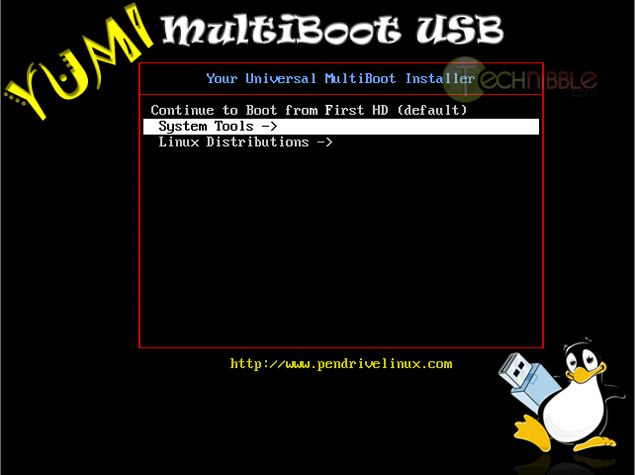
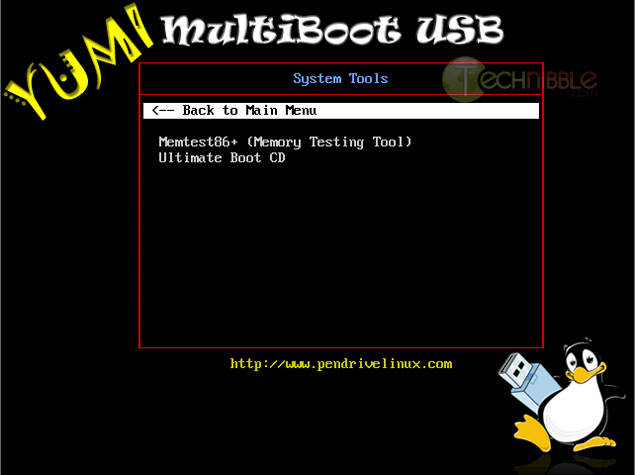
If you happen to install multiple operating systems to your USB key, YUMI will categorize them as you can see in the screenshots.
Screenshots

Downloads:
Session expired
Please log in again. The login page will open in a new tab. After logging in you can close it and return to this page.
We use cookies to help you navigate efficiently and perform certain functions. You will find detailed information about all cookies under each consent category below.
The cookies that are categorised as "Necessary" are stored on your browser as they are essential for enabling the basic functionalities of the site.
We also use third-party cookies that help us analyse how you use this website, store your preferences, and provide the content and marketing materials that are relevant to you. These cookies will only be stored in your browser with your prior consent.
You can choose to enable or disable some or all of these cookies but disabling some of them may affect your browsing experience.
We use third-party cookies that help us analyse how you use this website, store your preferences, and provide the content and marketing materials that are relevant to you. However, you can opt out of these cookies by checking "Do Not Sell or Share My Personal Information" and clicking the "Save My Preferences" button. Once you opt out, you can opt in again at any time by unchecking "Do Not Sell or Share My Personal Information" and clicking the "Save My Preferences" button.
Your opt-out settings for this website have been respected since we detected a Global Privacy Control signal from your browser and, therefore, you cannot change this setting.

very cool, can’t wait to try it. thanks for sharing.
Now if I could figure out how to get all of those on the list to PXE boot I would wet myself.
A guide to PXE booting ISO images over PXE is here.
http://www.wonkity.com/~wblock/docs/html/pxe.html
While that information on PXE is great, The ability to do a windows install over PXE still alludes me. (XP, vista and 7). I have a very picky setup that allows me to load a 7 install over PXE but I do way more XP re-installs than I do 7 or vista.
Once I get my PXE server fully set the way I want I will be making a video series explaining how and why I did it so I can share with the community.
How are you PXE booting XP? I have done it with the Microsoft Deployment Toolkit and Windows Deployment Services.
Cool!!! Very nice!!!
Not sure if it helps, but we use YUMI to create a multiboot usb flash drive consisting of several tools and our SCCM boot image. To add the SCCM boot image, you have to choose Windows Vista/7/8 installer and point it to your SCCM boot .iso.
YUMI is yummy. But I’m having a problem getting Linux Mist to be “persistent” – that is, to retain my settings and additions. The instructions are on the YUMI page, but I’m having no luck.
Thanks for the link to the program.