Get More Managed Service Clients
We provide the training and resources to
predictably grow your MSP customer base fast.
LOCAL MSP CLIENTS
IN 5 MINUTES
13+
Years Of Helping
I.T. Businesses
6,330+
I.T. Businesses
We Helped

Your IT Marketing Campaign. Done.
Professionally Curated IT Marketing Campaigns.
Just Add Your Branding and Send.
LOCAL MSP CLIENTS
IN 5 MINUTES
12+
Years Of Helping
I.T. Businesses
6,330+
I.T. Businesses
We Helped
Your IT Marketing Campaign. Done.
Professionally Curated IT Marketing Campaigns.
Just Add Your Branding and Send.
LOCAL MSP CLIENTS
IN 5 MINUTES
12+
Years Of Helping
I.T. Businesses
6,330+
I.T. Businesses
We Helped

Overall it's a fantastic service!
Overall it's a fantastic service! There's no chance of me coming up with this stuff on my own. It's always relevant content and formatted well.
Anybody that's on the fence should check out the samples or just sign up for the service.

Bryce, your newsletters blow them away!
I've participated in a newsletter service in the past. It was when I was with a Fortune 500 insurance company. Well Bryce, your newsletters blow them away! The content is much more relevant and you have multiple options to choose how you deliver the message, including MailChimp integration. I wonder how you accomplish your end so well because the newsletters are so timely and punctual.

Fresh, usable, up-to-date and valuable for our clients
Your white label newsletter was and is a great opportunity for companies like us to provide high quality content while saving a lot of time. Most of the posts and subjects you sent is fresh, usable, up to date and valuable for our clients. Although I can talk for hours about technology in a coherent way there just isn't enough time to prepare the content for web or newsletter.
Do any of these sound like you…
Introducing the
Technibble Marketing Membership
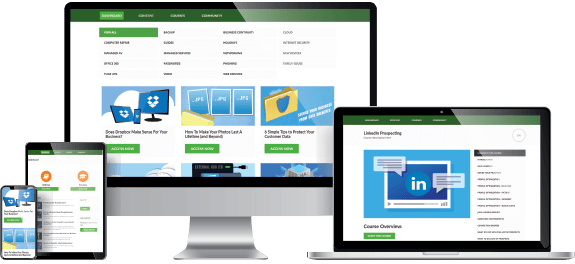
Everything you need to consistently find, close and retain MSP clients month after month without needing to be a marketing expert.
In our membership, you'll get access to:
What You Get

Full Access to Content Archive
Professionally written, punchy content. Complete with email, and blog content templates.

Fully Brand-able eBooks
High quality eGuides to use as an opt-in bribe to get prospects to join your mailing list.

Professional Educational Videos
Sell with an educational video to post to your website and social media platforms. Voiced in 4 different accents: American, British, Canadian and Australian.

Social Media Content
Stay top-of-mind by sending the content out via social media platforms.

Video Training
Teaching you how to actively find prospects and not just hope for referrals.

Access to Bryce
I'm here to help. Ask me any question about marketing an MSP, how to set up your marketing or even suggest a topic for us to write.

CONTENT ARCHIVE
Gain immediate access to our huge content library as soon as you join.
SALES FUNNELS
It takes 7-10 "touches" to make a sale, and you need a system that reaches your prospect at every stage. The sales funnels contain:
MARKETING ROADMAP
There are so many things you COULD be doing to market your business that it becomes overwhelming. Our marketing roadmap simplifies the MSP marketing process into easy to implement steps. Including:

I just wanted to take a minute to say the newsletters are awesome. They contain great content and it makes it very easy to send info to my clients which keeps me and my company fresh in their minds.
HOW ARE WE DIFFERENT?
WHAT OTHERS ARE
SAYING ABOUT US
Fresh, usable, up-to-date and valuable for our clients
Your white label newsletter was and is a great opportunity for companies like us to provide high quality content while saving a lot of time. Most of the posts and subjects you sent is fresh, usable, up to date and valuable for our clients. Although I can talk for hours about technology in a coherent way there just isn't enough time to prepare the content for web or newsletter.
Overall it's a fantastic service!
Overall it's a fantastic service! There's no chance of me coming up with this stuff on my own. It's always relevant content and formatted well.
Anybody that's on the fence should check out the samples or just sign up for the service.
If you are ready to grow your client base in a consistent way
RECent BLog posts
“If you have ever wanted to build a successful Computer Business then this site can help you.”
This website covers the business side of computer repair including how to get new clients, how to deal with bad ones, tips and tools to use.
You will find written articles and podcasts starting from “making the jump” from your full time job, all the way up to looking after other businesses with managed services.
Bryce Whitty
Founder, Technibble