
How to Recover Accidently Deleted Files
Something that most of us will do in our computing lives is accidentally deleting files. Sometimes people will empty the recycle bin without checking its contents, press SHIFT+DELETE on a file or folder (which deletes it without going to the recycle bin) or delete a file or folder from the command line. All of these methods will render the file or folder no longer visible to Windows XP and is seemingly lost forever. Luckily for us nothing is ever really deleted on your computer unless something else takes its place on the hard drive; Chances are your files are recoverable.
Windows XP doesn’t ship with any tool for recovering files so this is where the free tool Restoration comes in. It is effective at recovering deleted files and it doesn’t require any sort of installation so you can store it on a USB drive if you like.
You can get a free copy of Restoration HERE. (right click, save file as, and extract it somewhere)
Below is an example of recovering JPG files using the Restoration Tool:
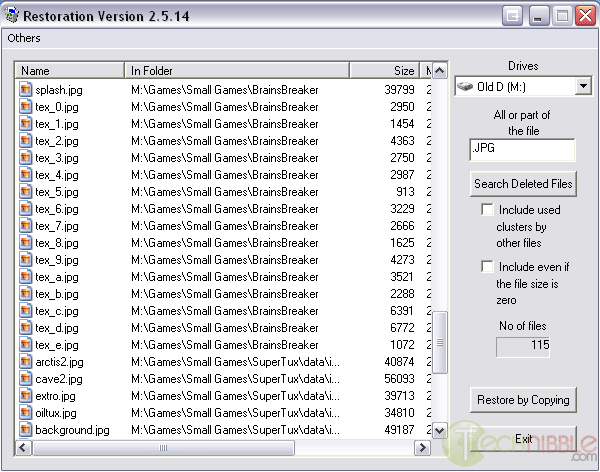
How to use Restoration:
To use restoration, simply choose the Hard Drive which your deleted file was originally on from the dropdown in the upper right. For example, if you deleted a file from your “My Documents” folder you would choose C:
If you would like to only search for a specific type of file such as a word document, type in .DOC in All or part of the file field, otherwise leave blank to find everything.
Click “Search Deleted Files” to start the search. When the search is complete, select the files you want to recover and click the “Restore By Copying” button. When you restore the files, be sure to restore them to another partition or drive to avoid the risk of overwriting the original information you are trying to recover.
If you only have a single hard drive and/or a single partition you can back up to a USB drive, a floppy disk or a network location.
Hopefully you won’t need to recover any deleted but if you do you will be ready for it.
Session expired
Please log in again. The login page will open in a new tab. After logging in you can close it and return to this page.
[…] from within Windows. Restoration made an appearance in one of our earlier articles titled “How to Recover Accidentally Deleted Files” where we wrote about how to use this tool. This tool is easy to use and is handy for both […]
I have try this s/w. Fist impression not good enough bcoz even the folder restored but the document or anything inside it mostly gone. Still no purpose for me to recover the folder
I can’t say from my experience, as I have never used Restoration, but from what I’ve heard it does a bad job. Personally I use Advanced File Recovery (http://www.advanced-file-recovery.com/). It has many features, and the utility helped a lot of people, and me too.
this is brilliant – just what I needed and it worked perfectly
this tool is good bt i hav used a better software which works in two modes standard and advance modes respectively for recent data lost and lost of data long time ago. you can also download demo version from
http://www.recoverdeletedfile.org/